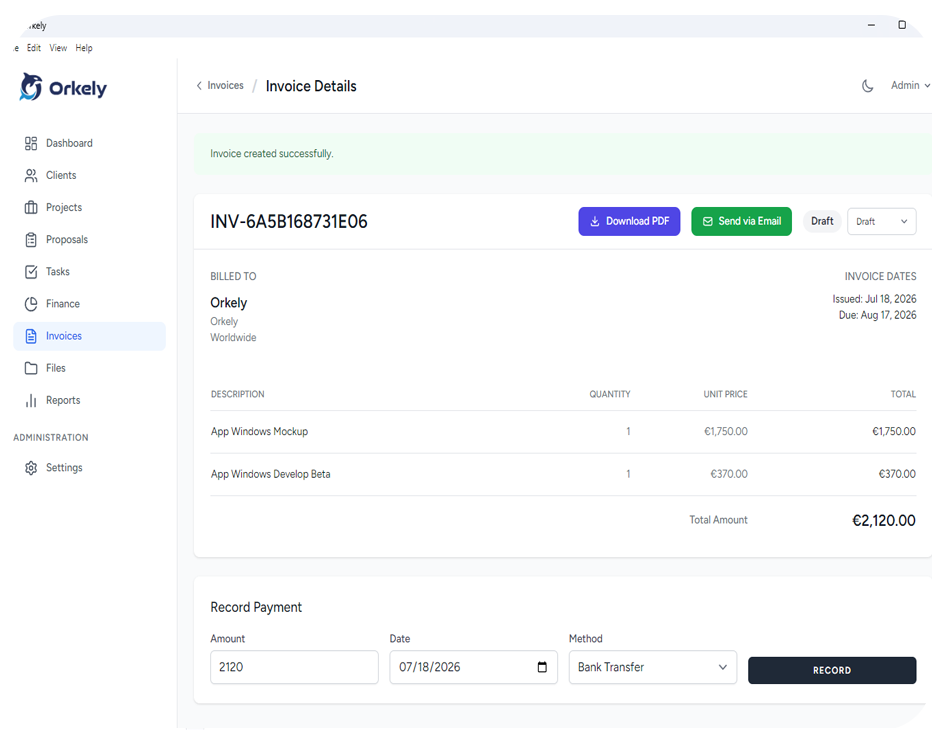
Orkely sends invoices and proposals through your own email account, not through an Orkely mail server. That is good for privacy and for your clients seeing your address, but it means the connection has to work from your PC. When it does not, the error usually comes from one of four places: the firewall, the port, the password, or a missing SMTP configuration.
Work through these in order. Most failures are solved by the first two checks.
1. Allow Orkely through the firewall or antivirus
Security software can block outgoing SMTP silently. The app then looks like it has the wrong password, because the connection never reaches the mail server at all.
Allow Orkely through Windows Firewall and through any third-party antivirus or security suite. If you use a managed work laptop, the block may be a company policy rather than something you can change locally.
2. Check the SMTP port and encryption
Use one of these combinations:
- Port 587 with TLS / STARTTLS — the usual choice.
- Port 465 with SSL — still used by some providers.
Port 25 is commonly blocked by ISPs and should not be your first choice. If the app says it cannot reach the email server, a blocked port or a firewall is more likely than a wrong password.
3. Use an App Password for Gmail or Outlook
Gmail / Google Workspace
- Enable 2-Step Verification on the Google account first.
- Generate an App Password in the account's security settings.
- Use
smtp.gmail.comon port 587 with TLS. - Paste the App Password into Orkely. Gmail rejects your normal account password for SMTP.
Outlook / Microsoft 365
- Use
smtp.office365.comon port 587 with TLS. - If multi-factor authentication is on, use an App Password rather than your normal password.
- Some Microsoft 365 tenants disable SMTP AUTH entirely. If that is the case, the setting has to be enabled by the tenant administrator, or you use the fallback below.
4. Check the account details and sender address
Confirm the username, password, host and port in Settings → Email. The sender address should normally be the same address, or an address your provider allows you to send as. A mismatch can be rejected even when the password is correct.
If you changed your email password recently, update it in Orkely too. An old saved password produces an authentication error that looks like a server problem.
5. Use the fallback when you need to send now
If SMTP is not configured, or the connection fails, choose Send via my email app on the invoice or proposal. Orkely saves the PDF to your Downloads folder and opens a pre-filled draft in your desktop mail app. Attach the saved PDF if your mail app does not do it automatically, then send from there.
This is a real fallback, not a failure state. The document still leaves your machine from your own address. It simply uses your mail app instead of Orkely's SMTP connection.
What the error means
- Could not reach the email server: the connection failed before authentication — usually the firewall, the port or the host name.
- Authentication failed / username or password rejected: the account details are wrong, or the provider requires an App Password.
- The PDF is saved but no email was sent: SMTP was unavailable and the fallback took over. Check Downloads and your mail app.
If it still fails
Try the fallback once to confirm the invoice or proposal itself is fine. Then contact support with the exact error message, your email provider (Gmail, Outlook or a custom domain), the SMTP host and port, and whether you are using an App Password. Do not send your password.