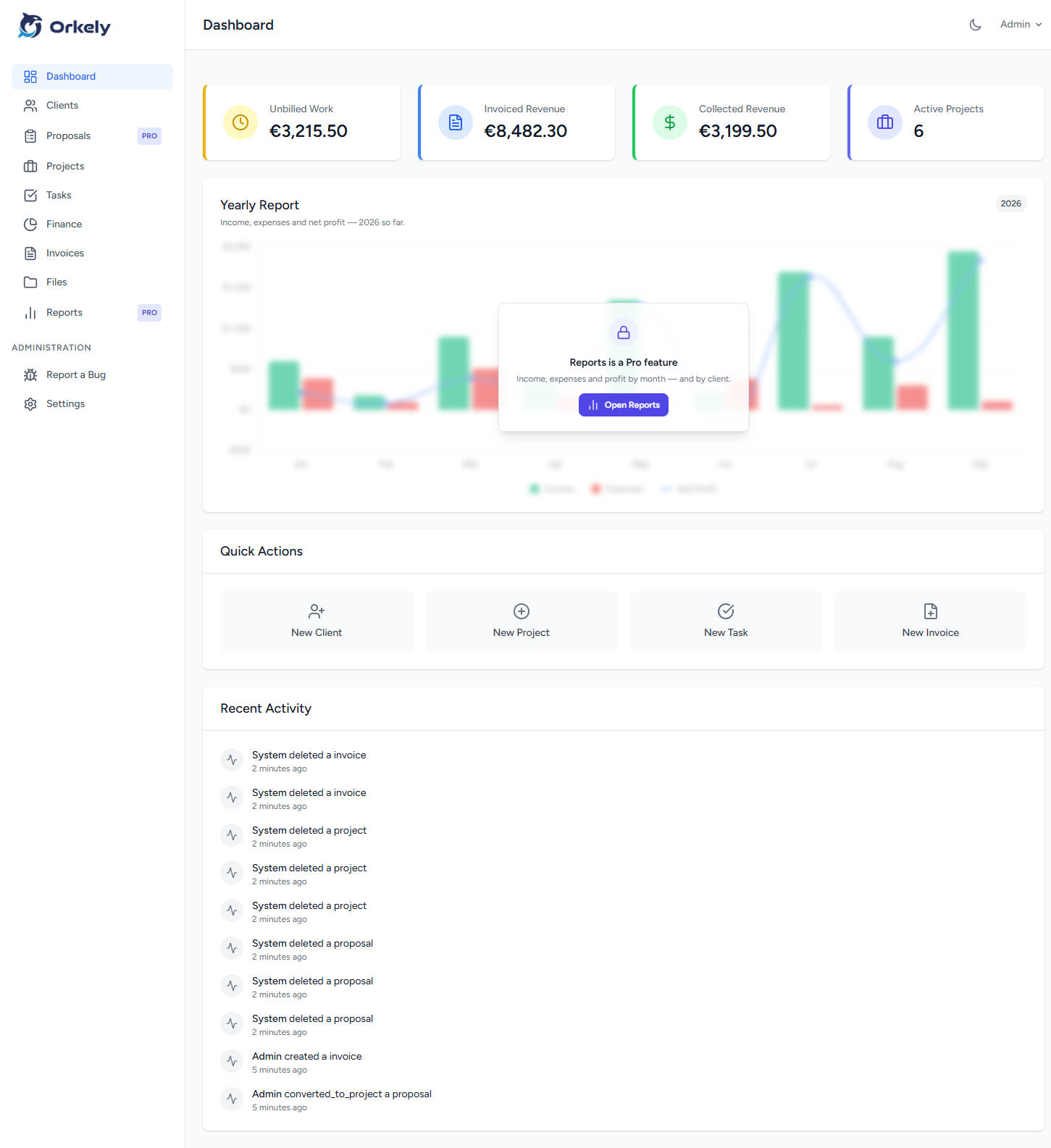
Orkely Pro is no longer a separate application. There is one app, Orkely Free, and Pro is a one-time add-on bought inside it. If you went looking for a second download, a separate installer or a Pro Store listing, that is why you could not find one.
The add-on is called Reports & Proposals. It unlocks the proposal builder and the reports module. Everything else — clients, projects, tasks, files, invoicing, finance, backups — is in Orkely Free and does not require the add-on.
What changed, and what did not
The old standalone Orkely Pro app has been retired. Existing owners keep the copy they already installed, but there is nothing new to download from that listing and no reason to link to it. The product is now a single Windows app with an optional in-app upgrade.
What did not change is the price model: the add-on is $24.99 once, not a subscription. It is tied to your Microsoft account, so it follows the account rather than one particular PC.
What the Pro add-on unlocks
- Proposals — a rich-text builder with merge fields. A proposal can be emailed with its PDF attached or printed and saved yourself, and an accepted proposal becomes a project with its line items already laid out as tasks.
- Reports — revenue, expenses, outstanding invoices and per-client billing, with the same trend charts drawn into the exported PDF.
You can open both modules in Orkely Free before buying anything. The real screen loads behind a single blurred upgrade prompt, so you can inspect the layout and the fields instead of buying blind.
How to buy it inside Orkely Free
- Open Proposals or Reports from the sidebar.
- Click Get Reports & Proposals on the add-on card.
- Complete the purchase in the Microsoft Store dialog. This needs an internet connection, and nothing is charged unless you complete it.
- The app unlocks when the Store confirms the purchase. If the page still looks locked, press Check again.
There is no separate Pro download, no migration step and no second app to install. The add-on simply turns on inside the copy of Orkely Free you already have.
How to restore it after a reinstall or on a new PC
- Open Proposals or Reports.
- Make sure you are signed in to the Microsoft Store with the same Microsoft account used for the purchase, and that the PC is online.
- Click Check again in the add-on card. The same link is on Help → About.
There is no licence key to enter. The Microsoft account is the licence. If you are moving to a new PC, install Orkely Free first, sign in with that account, then use Check again. Your local data is separate from the licence — restore a backup or follow the move-to-a-new-PC guide to bring your records across.
If it still says the add-on is locked
Work through these in order:
- Internet: the ownership check talks to the Microsoft Store, so it cannot run offline.
- Firewall or antivirus: allow Orkely through Windows Firewall and any security suite. Software that blocks the app from reaching Microsoft can make a valid purchase look missing.
- Update Orkely Free: open the Microsoft Store, go to Library → Get updates, and install any Orkely update.
- Same account: confirm the Store is signed in with the Microsoft account that bought the add-on.
- Check again once more after those checks.
The two in-app messages mean different things. Could not reach the Microsoft Store means the check could not run, usually because of the connection or a firewall. No Reports & Proposals add-on was found means the Store answered, but the signed-in account does not own it.
What you are not buying
You are not buying a second app, a new version of Orkely, or a subscription. You are unlocking two modules inside the same local application. Your clients, projects, invoices and files stay exactly where they are.